
Running out of storage on your phone can be frustrating—especially when you’re trying to download an important app, capture a moment, or update your system. If you’ve ever seen the dreaded “Storage Full” notification, you’re not alone. The good news is that learning how to free up storage space on your phone is easier than you think.
In this complete guide, you’ll discover practical, proven, and beginner-friendly methods to clean up your phone, boost performance, and keep everything running smoothly.
Why Phone Storage Gets Full So Quickly
Before we dive into solutions, it’s important to understand why your storage fills up in the first place.
1. Apps and Their Hidden Data
Apps don’t just take space when you install them—they also store cache, temporary files, and updates over time.
2. Photos and Videos
High-resolution photos and 4K videos consume a huge amount of storage, especially if you don’t back them up.
3. Downloads and Media Files
PDFs, memes, WhatsApp media, and random downloads quietly pile up in your storage.
4. System Files and Updates
Operating systems require space to function and grow with updates.
How to Free Up Storage Space on Your Phone (Step-by-Step)
Let’s explore the most effective ways to clear storage and optimize your device.
1. Delete Unused Apps
Why It Matters
Many apps sit unused for months but still take up valuable storage.
How to Do It
- Go to Settings > Storage > Apps
- Sort apps by size
- Uninstall apps you rarely use
Pro Tip
If you haven’t used an app in 30 days, you probably don’t need it.
2. Clear App Cache and Data
What Is Cache?
Cache stores temporary files to speed up apps—but it can grow too large.
Steps to Clear Cache
- Go to Settings > Apps
- Select an app (like Chrome or Facebook)
- Tap Storage
- Click Clear Cache
Important Note
Avoid clearing “data” unless necessary, as it may log you out.
3. Remove Duplicate Photos and Videos
The Problem
Your gallery may have:
- Duplicate images
- Screenshots
- Blurry photos
Solution
- Use built-in gallery tools or cleaning apps
- Manually delete unnecessary media
Bonus Tip
Keep only your best photos—quality over quantity.
4. Back Up Files to Cloud Storage
Why Use Cloud Storage?
Cloud services allow you to store files online and free up phone space.
Popular Options
- Google Drive
- iCloud
- Dropbox
Steps
- Upload photos/videos to cloud
- Delete them from your device
Result
You get more storage without losing important memories.
5. Delete Old Downloads
Where to Look
- Downloads folder
- WhatsApp/Telegram media
- Browser downloads
What to Remove
- Old PDFs
- APK files
- Duplicate images
Quick Tip
Sort files by size and delete the largest unnecessary ones first.
6. Use Built-in Storage Cleaner Tools
Most smartphones now include smart cleaning tools.
Android
- Go to Settings > Storage > Clean Up
- Use recommendations
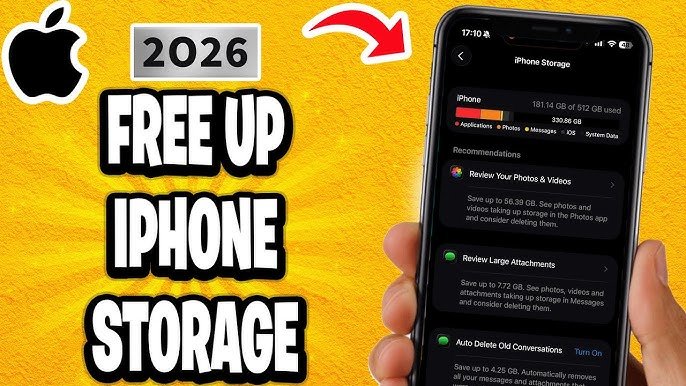
iPhone
- Go to Settings > General > iPhone Storage
- Follow suggestions
Benefits
- Fast cleaning
- No need for third-party apps
7. Move Files to SD Card (Android Only)
If your phone supports an SD card, this is a powerful solution.
What You Can Move
- Photos
- Videos
- Music
- Documents
How to Do It
- Insert SD card
- Go to file manager
- Move files manually
Result
You instantly free internal storage.
8. Delete Large Files
How to Find Large Files
- Use file manager apps
- Sort by file size
Common Large Files
- Movies
- Long videos
- Game data
Action Plan
Delete or transfer them to external storage.
9. Manage WhatsApp and Social Media Storage
Messaging apps are storage killers.
WhatsApp Storage Fix
- Go to Settings > Storage and Data > Manage Storage
- Delete large videos and forwarded files
Social Media Apps
Apps like Facebook and Instagram store cache and media.
Solution
- Clear cache regularly
- Limit auto-download settings
10. Turn Off Auto-Downloads
Why It Helps
Auto-downloading media fills storage without you noticing.
Disable It
- Open WhatsApp or Telegram
- Go to settings
- Turn off auto-download for videos and images
11. Use Lite Versions of Apps
What Are Lite Apps?
Lite apps are smaller versions of popular apps.
Examples
- Facebook Lite
- Messenger Lite
Benefits
- Less storage usage
- Faster performance
12. Optimize Photos and Videos
Reduce File Size
- Lower camera resolution
- Compress images
Tools You Can Use
- Built-in phone settings
- Compression apps
Result
You save space while keeping your media.
13. Clear Browser Data
Browsers store:
- History
- Cookies
- Cached images
How to Clear
- Open browser settings
- Tap Clear Browsing Data
Impact
Frees up hidden storage space instantly.
14. Delete Old Messages and Emails
Why It Matters
Text messages and emails with attachments take space.
What to Do
- Delete old conversations
- Remove large attachments
15. Factory Reset (Last Option)
When to Use
If your phone is still full after everything.
Warning
This will erase all data.
Steps
- Backup everything
- Go to Settings > Reset
- Perform factory reset
Best Practices to Keep Storage Clean
Now that you know how to free up storage space on your phone, here are tips to maintain it.
1. Clean Weekly
Spend 5–10 minutes every week deleting junk files.
2. Avoid Installing Unnecessary Apps
Only install apps you truly need.
3. Use Cloud Storage Regularly
Make backups a habit.
4. Monitor Storage Usage
Check storage settings monthly.
Common Mistakes to Avoid
❌ Ignoring Cache Build-Up
Cache grows silently and eats space.
❌ Keeping Duplicate Files
Duplicates waste valuable storage.
❌ Not Backing Up Data
You risk losing important files when deleting.
Benefits of Freeing Up Storage Space
Cleaning your phone isn’t just about space—it improves performance too.
🚀 Faster Speed
Less clutter = smoother performance
🔋 Better Battery Life
Optimized storage reduces system load
📱 Improved App Performance
Apps run faster and crash less
FAQs About Phone Storage
How often should I clean my phone storage?
At least once a week for best performance.
Does deleting cache improve speed?
Yes, it can make apps run smoother.
Is cloud storage safe?
Yes, as long as you use trusted services.
Conclusion
Learning how to free up storage space on your phone is essential in today’s digital world. With apps, media, and files constantly growing, it’s easy to run out of space—but with the right strategies, you can take control.
Start by deleting unused apps, clearing cache, and backing up your files. Then adopt smart habits like using cloud storage and avoiding unnecessary downloads.
By following this guide, you’ll not only free up space but also enjoy a faster, smoother, and more efficient smartphone experience.
How to Free Up Storage Space on Your Phone (Complete 2026 Guide)
Running out of storage on your phone can be frustrating—especially when you’re trying to download an important app, capture a moment, or update your system. If you’ve ever seen the dreaded “Storage Full” notification, you’re not alone. The good news is that learning how to free up storage space on your phone is easier than you think.
In this complete guide, you’ll discover practical, proven, and beginner-friendly methods to clean up your phone, boost performance, and keep everything running smoothly.
Why Phone Storage Gets Full So Quickly
Before we dive into solutions, it’s important to understand why your storage fills up in the first place.
1. Apps and Their Hidden Data
Apps don’t just take space when you install them—they also store cache, temporary files, and updates over time.
2. Photos and Videos
High-resolution photos and 4K videos consume a huge amount of storage, especially if you don’t back them up.
3. Downloads and Media Files
PDFs, memes, WhatsApp media, and random downloads quietly pile up in your storage.
4. System Files and Updates
Operating systems require space to function and grow with updates.
How to Free Up Storage Space on Your Phone (Step-by-Step)
Let’s explore the most effective ways to clear storage and optimize your device.
1. Delete Unused Apps
Why It Matters
Many apps sit unused for months but still take up valuable storage.
How to Do It
- Go to Settings > Storage > Apps
- Sort apps by size
- Uninstall apps you rarely use
Pro Tip
If you haven’t used an app in 30 days, you probably don’t need it.
2. Clear App Cache and Data
What Is Cache?
Cache stores temporary files to speed up apps—but it can grow too large.
Steps to Clear Cache
- Go to Settings > Apps
- Select an app (like Chrome or Facebook)
- Tap Storage
- Click Clear Cache
Important Note
Avoid clearing “data” unless necessary, as it may log you out.
3. Remove Duplicate Photos and Videos
The Problem
Your gallery may have:
- Duplicate images
- Screenshots
- Blurry photos
Solution
- Use built-in gallery tools or cleaning apps
- Manually delete unnecessary media
Bonus Tip
Keep only your best photos—quality over quantity.
4. Back Up Files to Cloud Storage
Why Use Cloud Storage?
Cloud services allow you to store files online and free up phone space.
Popular Options
- Google Drive
- iCloud
- Dropbox
Steps
- Upload photos/videos to cloud
- Delete them from your device
Result
You get more storage without losing important memories.
5. Delete Old Downloads
Where to Look
- Downloads folder
- WhatsApp/Telegram media
- Browser downloads
What to Remove
- Old PDFs
- APK files
- Duplicate images
Quick Tip
Sort files by size and delete the largest unnecessary ones first.
6. Use Built-in Storage Cleaner Tools
Most smartphones now include smart cleaning tools.
Android
- Go to Settings > Storage > Clean Up
- Use recommendations
iPhone
- Go to Settings > General > iPhone Storage
- Follow suggestions
Benefits
- Fast cleaning
- No need for third-party apps
7. Move Files to SD Card (Android Only)
If your phone supports an SD card, this is a powerful solution.
What You Can Move
- Photos
- Videos
- Music
- Documents
How to Do It
- Insert SD card
- Go to file manager
- Move files manually
Result
You instantly free internal storage.
8. Delete Large Files
How to Find Large Files
- Use file manager apps
- Sort by file size
Common Large Files
- Movies
- Long videos
- Game data
Action Plan
Delete or transfer them to external storage.
9. Manage WhatsApp and Social Media Storage
Messaging apps are storage killers.
WhatsApp Storage Fix
- Go to Settings > Storage and Data > Manage Storage
- Delete large videos and forwarded files
Social Media Apps
Apps like Facebook and Instagram store cache and media.
Solution
- Clear cache regularly
- Limit auto-download settings
10. Turn Off Auto-Downloads
Why It Helps
Auto-downloading media fills storage without you noticing.
Disable It
- Open WhatsApp or Telegram
- Go to settings
- Turn off auto-download for videos and images
11. Use Lite Versions of Apps
What Are Lite Apps?
Lite apps are smaller versions of popular apps.
Examples
- Facebook Lite
- Messenger Lite
Benefits
- Less storage usage
- Faster performance
12. Optimize Photos and Videos
Reduce File Size
- Lower camera resolution
- Compress images
Tools You Can Use
- Built-in phone settings
- Compression apps
Result
You save space while keeping your media.
13. Clear Browser Data
Browsers store:
- History
- Cookies
- Cached images
How to Clear
- Open browser settings
- Tap Clear Browsing Data
Impact
Frees up hidden storage space instantly.
14. Delete Old Messages and Emails
Why It Matters
Text messages and emails with attachments take space.
What to Do
- Delete old conversations
- Remove large attachments
15. Factory Reset (Last Option)
When to Use
If your phone is still full after everything.
Warning
This will erase all data.
Steps
- Backup everything
- Go to Settings > Reset
- Perform factory reset
Best Practices to Keep Storage Clean
Now that you know how to free up storage space on your phone, here are tips to maintain it.
1. Clean Weekly
Spend 5–10 minutes every week deleting junk files.
2. Avoid Installing Unnecessary Apps
Only install apps you truly need.
3. Use Cloud Storage Regularly
Make backups a habit.
4. Monitor Storage Usage
Check storage settings monthly.
Common Mistakes to Avoid
❌ Ignoring Cache Build-Up
Cache grows silently and eats space.
❌ Keeping Duplicate Files
Duplicates waste valuable storage.
❌ Not Backing Up Data
You risk losing important files when deleting.
Benefits of Freeing Up Storage Space
Cleaning your phone isn’t just about space—it improves performance too.
🚀 Faster Speed
Less clutter = smoother performance
🔋 Better Battery Life
Optimized storage reduces system load
📱 Improved App Performance
Apps run faster and crash less
FAQs About Phone Storage
How often should I clean my phone storage?
At least once a week for best performance.
Does deleting cache improve speed?
Yes, it can make apps run smoother.
Is cloud storage safe?
Yes, as long as you use trusted services.
Conclusion
Learning how to free up storage space on your phone is essential in today’s digital world. With apps, media, and files constantly growing, it’s easy to run out of space—but with the right strategies, you can take control.
Start by deleting unused apps, clearing cache, and backing up your files. Then adopt smart habits like using cloud storage and avoiding unnecessary downloads.
By following this guide, you’ll not only free up space but also enjoy a faster, smoother, and more efficient smartphone experience.